
Moodle KU Login (2026) Kuwait University Complete Step by Step Guide

If you are trying to log in to Kuwait University Moodle and you want the fastest route with the least headaches, this guide is for you. I’m Saleh Muhammad, a Kuwaiti citizen and an expat for over 10 years. I’ve handled a lot of Kuwait related services and platforms remotely, and I know the most common mistakes students make, especially at the start of the semester and during exams.
This page is written to be practical. You will get the official links, the correct login method for your situation, password recovery steps, the KU Moodle app details, and real fixes for common problems.
Quick facts before you log in
Here’s what I recommend you do first, before touching anything else.
Official Moodle KU link
- Official portal: https://moodle.ku.edu.kw
Bookmark it. A lot of students waste time on look alike pages or old links.
Who manages Moodle at Kuwait University
- Kuwait University Electronic Learning Center (ELC): https://elc.ku.edu.kw
The ELC is the official support and administration body for Moodle at KU.
Moodle KU login methods at a glance (choose the right one)
| Login method | Who should use it | What you need | Best for |
|---|---|---|---|
| KU SIS login (recommended) | Enrolled students and faculty | KU institutional email and password | Most users, full access |
| Local User login | Some staff, collaborators, special accounts | Moodle specific username and password | When SIS is unavailable or you were given a local account |
| Guest access | Anyone | Nothing | Preview public course content only |
If you have a KU email, use KU SIS first. Local User is not the default route for most students.
What is Moodle KU and why Kuwait University uses it
Moodle is a widely used learning management system that universities use to deliver course content, assignments, quizzes, grades, and communication in one place. Kuwait University uses Moodle KU to make learning organized, trackable, and accessible from anywhere.
From my experience helping students and expats with digital platforms, the value is not just “online lectures”. It’s the structure: deadlines, submissions, timestamps, grade visibility, and official communication.
What Moodle KU replaces (in real life)
Before platforms like Moodle became standard, students had to deal with:
- Printed handouts that get lost
- Physical assignment submission and manual receipts
- Random communication channels
- No unified place to check grades and feedback
Moodle KU centralizes everything into one dashboard.
Useful global context (quick stats)
These numbers help you understand why Moodle is trusted at university level worldwide.
| Metric | Latest widely cited figures | Why it matters |
|---|---|---|
| Moodle is used worldwide | 200 plus countries | Mature platform with long term support |
| Estimated users globally | 300 million plus users (Moodle project reporting) | Proven at large scale |
| Institutions using Moodle | Tens of thousands globally | Stable and widely supported ecosystem |
Sources you can verify: Moodle’s official statistics and project reporting pages (moodle.org).
Before you start: my checklist (saves time)
I always tell students to do this first, especially if you’re logging in from your phone or from outside Kuwait.
- Use the official URL: moodle.ku.edu.kw
- Use a modern browser: Chrome, Firefox, or Safari (updated)
- Try a stable connection
- For quizzes, avoid weak Wi Fi or switching between networks
- If something looks “off”, do not enter your password
- Phishing pages exist and they often look convincing
Method 1 (recommended): Log in to Moodle KU via KU SIS
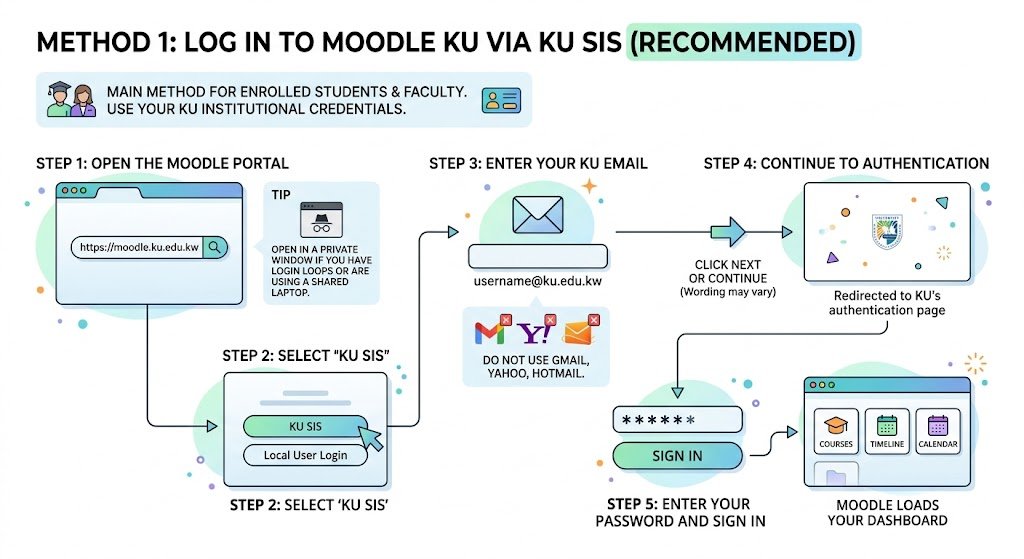
KU SIS login is the main method for enrolled students and faculty. You use the same KU institutional credentials you use for other university services.
Step by step KU SIS login
Step 1: Open the Moodle portal
Go to: https://moodle.ku.edu.kw
Tip from my side: open it in a private window (incognito) if you have login loops or you are using a shared laptop.
Step 2: Select “KU SIS”
On the login page you will typically see:
- KU SIS
- Local User Login
Choose KU SIS.
Step 3: Enter your KU email
Enter your full institutional email address provided by Kuwait University.
Do not use Gmail, Yahoo, Hotmail.
Step 4: Continue to authentication
Click Next or Continue (wording may vary). You’ll be redirected to KU’s authentication page.
Step 5: Enter your password and sign in
After successful login, Moodle loads your dashboard with courses, timeline, and calendar.
Method 2: Log in as a Local User (only if you were given a local account)
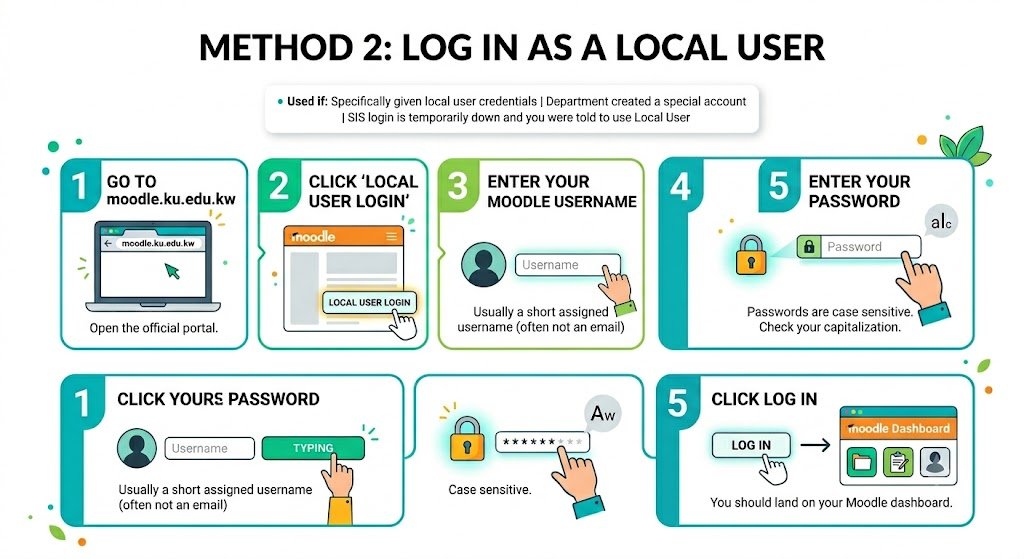
Local User accounts are separate from KU SIS. In my experience, students usually need Local User only if:
- they were specifically given Local User credentials
- a department created a special account
- SIS login is temporarily down and you were told to use Local User
Step by step Local User login
Step 1: Go to moodle.ku.edu.kw
Open the official portal.
Step 2: Click “Local User Login”
This opens a username and password form.
Step 3: Enter your Moodle username
This is usually not your email. It is often a short username assigned when the account was created.
Step 4: Enter your password
Passwords are case sensitive. One of the most common issues is typing the right password with the wrong capitalization.
Step 5: Click Log in
You should land on your Moodle dashboard.
Method 3: Guest access (limited preview)
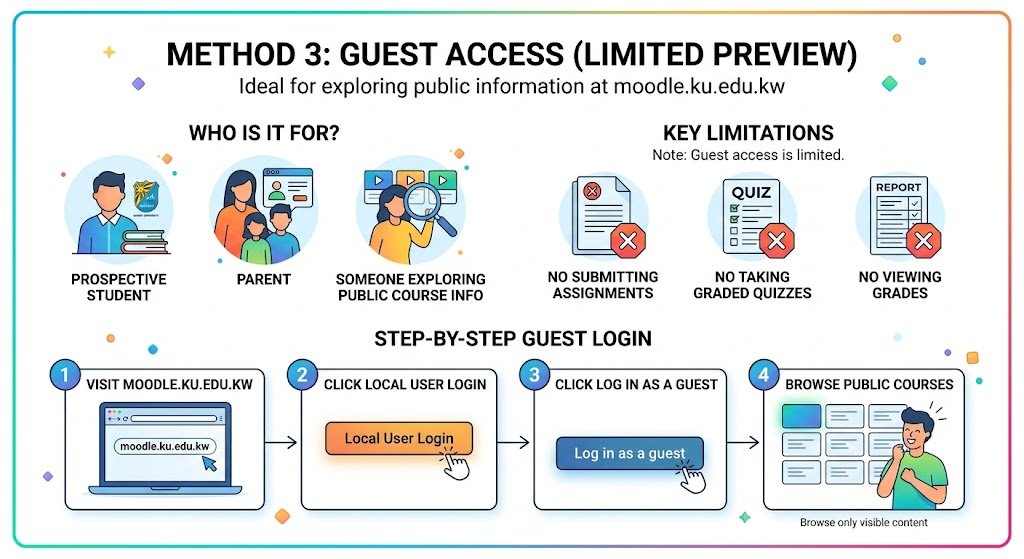
Guest access is useful if you are:
- a prospective student
- a parent
- someone exploring public course info
Guest access is limited. You cannot submit assignments, take graded quizzes, or view grades.
Step by step Guest login
- Visit moodle.ku.edu.kw
- Click Local User Login
- Click Log in as a guest
- Browse only the courses that are publicly visible
Password recovery for Moodle KU (KU SIS vs Local User)
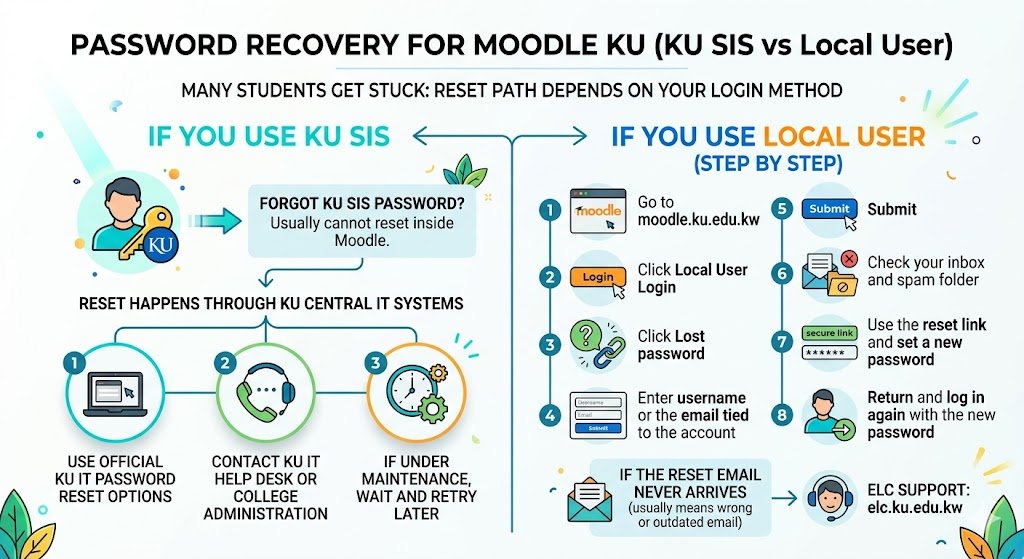
This is where many students get stuck, because the reset path depends on your login method.
If you use KU SIS
If you forgot your KU SIS password, you usually cannot reset it inside Moodle. The reset happens through Kuwait University’s central IT systems.
What to do:
- Use official KU IT password reset options if available
- Contact the KU IT Help Desk or your college administration
- If the KU authentication system is under maintenance, wait and retry later
If you use Local User (step by step)
- Go to moodle.ku.edu.kw
- Click Local User Login
- Click Lost password
- Enter your username or the email tied to the account
- Submit
- Check your inbox and spam folder
- Use the reset link and set a new password
- Return and log in again with the new password
If the reset email never arrives, it usually means the email on file is wrong or outdated. In that case, ELC support is the right direction: elc.ku.edu.kw
Moodle KU dashboard explained (what you see after login)
Once you’re in, your dashboard is your control center. If you learn it once, you’ll save time every week.
| Dashboard area | What it shows | How I recommend using it |
|---|---|---|
| Timeline | Upcoming deadlines and activities | Check daily during midterms and finals |
| Recently accessed courses | Your latest opened courses | Fast jump back into active courses |
| Calendar | Events, due dates, quiz windows | Plan your week, avoid deadline surprises |
| My courses | Full list of enrolled courses | Use it when you have many subjects |
If you log in and see no courses, don’t panic. Sometimes the course exists but the instructor hasn’t published it yet.
What you can do inside Moodle KU (practical use cases)
1) Access course materials
Most courses upload:
- Lecture slides (PDF, PPT)
- Readings
- Recorded sessions or links
- Weekly folders by topic
My advice: download key files early, especially before exams.
2) Submit assignments electronically
Assignments usually support common formats like:
- DOCX
- XLSX
- sometimes ZIP for projects
Important reality: Moodle timestamps your submission. If you submit at 11:59:59, it’s recorded. If you submit at 12:00:10, it’s late. Don’t gamble with last minute uploads when your internet is unstable.
3) Take quizzes and online exams
Moodle quizzes can include:
- multiple choice
- short answer
- essay
- file upload questions
My exam day rule:
- Use a laptop if possible
- Close extra tabs
- Don’t rely on mobile data unless it’s strong
- If you disconnect, take screenshots and contact your instructor immediately
4) Track grades and feedback
When instructors publish grades, you’ll see them inside the course Gradebook. Feedback can include rubrics, comments, and marked files.
If you believe a grade is wrong, raise it politely and quickly. Some colleges and instructors have strict windows for grade queries.
5) Communicate through forums and messages
Forums are not “optional” in many courses. Some instructors post:
- rescheduled classes
- extra readings
- corrections to assignments
- exam instructions
Check announcements at least a few times per week.
KU Moodle mobile app (Android and iPhone)
Kuwait University provides a KU specific Moodle app. This matters because many students accidentally download the generic Moodle app and then face login or notification issues.
KU Moodle app download info
| Platform | Where to download | What to search |
|---|---|---|
| Android | Google Play Store | KU Moodle |
| iOS | Apple App Store | KU Moodle |
Developer may show as Human Logic (as commonly listed). Always verify you’re installing the KU specific app.
What the app is actually good for
- Notifications for due dates and announcements
- Quick access to course files
- Offline viewing after downloading materials
- Messaging and discussion participation
Offline tip I personally recommend
Before exam week, open each course and download the key PDFs to your phone. When campus networks get crowded, you still have what you need.
Can you take quizzes in the app
Sometimes yes, sometimes no. Some instructors restrict quizzes to desktop browsers for proctoring or settings reasons. If you don’t see the quiz on the app, switch to a laptop browser.
Moodle KU for faculty (quick overview)
If you’re an instructor or teaching assistant, Moodle KU is not just a file upload tool. It supports:
- building course structure by week/topic
- assignment setup with deadlines and plagiarism tools (if configured)
- quiz banks and randomization
- grading workflows and feedback
- reports for participation and activity
For official training documents and workflows, the most reliable reference is still the ELC portal: elc.ku.edu.kw
Common Moodle KU login problems and fixes (the ones I see most)
| Issue | Likely cause | Fix that works |
|---|---|---|
| Invalid credentials on KU SIS | Wrong email format, expired password | Confirm KU email format, reset through KU IT systems |
| Moodle page not loading | Maintenance, cache, DNS, weak network | Try incognito, clear cache, change network, retry later |
| Logged in but no courses | Course not published or enrollment not synced yet | Wait until teaching week starts, confirm enrollment with college |
| Login loop redirects | Browser cookies conflict | Clear cookies for ku.edu.kw, try another browser |
| Quiz not opening on phone | Instructor restricted to desktop | Use laptop browser or ask instructor |
| Lost password email not received (Local User) | Spam folder or wrong email on file | Check spam, wait 10 minutes, then contact ELC |
| SIS auth error page | KU authentication maintenance | Wait 30 to 60 minutes and retry, check KU announcements |
If you are outside Kuwait and you face repeated access issues, try switching networks or using a different DNS, because sometimes routing issues happen depending on where you live.
Pro tip: Sync Moodle Calendar to your phone (this is a game changer)
If you want fewer missed deadlines, do this once at the start of the semester.
- Go to your Moodle dashboard
- Open Calendar
- Look for an export or iCal link
- Import into:
- Google Calendar
- Apple Calendar
- Outlook
Now your assignment deadlines and quiz windows can appear directly on your phone calendar with reminders. In real life, this is one of the simplest ways to stay ahead without checking Moodle every day.
Final thoughts (from someone who has dealt with Kuwait platforms remotely)
Moodle KU is straightforward once you follow the correct entry method. Most problems happen because of three things:
- students use an unofficial link
- they choose the wrong login method
- they rely on the app for a quiz that requires desktop
If you remember only this:
- Use moodle.ku.edu.kw
- Use KU SIS if you have a KU email
- Use Local User only if you were given local credentials
- For serious technical issues, ELC is the official support reference: elc.ku.edu.kw
Frequently asked questions (FAQ)
What is the official Moodle KU login link
The official link is https://moodle.ku.edu.kw. Bookmark it and avoid random search results that may lead to outdated pages.
What is the difference between KU SIS and Local User login
KU SIS uses your Kuwait University institutional email and password and is the standard option for enrolled students and faculty. Local User is a separate Moodle username and password used for specific cases and special accounts.
Can I use Moodle KU on my phone
Yes. Install the KU Moodle app from the Play Store or App Store. It supports notifications, offline access, and course browsing. Some quizzes may still require a desktop browser depending on instructor settings.
I forgot my password. Can I reset it on Moodle
If you log in with KU SIS, password reset typically happens through KU IT systems, not Moodle’s lost password link.
If you log in with Local User, use the Lost password link on the Local User login form.
I logged in but I can’t see my courses
Usually the instructor hasn’t published the course yet, or your enrollment hasn’t synced. Wait until the teaching week starts, then confirm with your department if it still doesn’t appear.
Does Moodle KU work for all Kuwait University colleges
Yes, Moodle KU is university wide. How heavily it’s used depends on the instructor and course.